Partly. Traffic from known bots and spiders is excluded automatically, using Google research and the IAB International Spiders and Bots List. You cannot turn this exclusion off, and you cannot see how much traffic it removed. Unknown bots, custom scripts and newer automation still reach your reports. Anything beyond that list is yours to segment or filter.
-
Solutions
-
 Click Fraud Protection
Block invalid clicks across every ad channel.
-
 Smart Bidding Protection
Feed Google clean, human-only signals.
-
 Clean Remarketing Audiences
Exclude suspicious traffic from your lists.
-
 All Features
Every ClickPatrol feature in one place.
-
 E-commerce & Retail
Protect shopping campaigns and product feeds.
-
 Service Providers
Stop wasted spend on local & lead-gen ads.
-
 Marketing Agencies
Classify, protect and train every client account.
-
 All Industries
Browse click fraud protection by industry.
-
 Small Business
Affordable protection that pays for itself.
-
 Enterprises
Scale protection across brands & accounts.
-
 Regional Companies
Keep local budgets on real, nearby buyers.
-
 Multinationals
Consistent protection across every market.
-
-
Agencies
-
For Agencies
Classify, protect and train every client account.
-
 Partner Program
Earn 15 to 25% recurring commission on linked clients.
-
 Case Studies
21 UK agencies unlocked over 6% media savings.
-
-
Resources
-
What is Click Fraud?
Learn what fake PPC clicks are and why they matter.
-
 Bot Traffic
Detect and block non-human clicks.
-
 Competitor Fraud
Stop rivals draining your budget.
-
 Sophisticated Fraud
Catch SIVT that native filters miss.
-
 Click Farms
Stop coordinated low-quality click operations.
-
 Invalid Traffic
Block every click that never converts.
-
 Help docs
How to connect Google Ads, GTM and other ad channels.
-
 FAQ
FAQ
Answers to the most common questions.
-
 Blog
Blog
Articles and guides from our expert team.
-
 Comparisons
ClickPatrol vs ClickCease and other tools.
-
 Tools
Tools
Free tools by ClickPatrol & Friends.
-
 About ClickPatrol™
Who we are and our mission.
-
Case Studies
Why agencies and businesses use ClickPatrol.
-
 Customer Reviews
Reviews and success stories from customers.
-
Partner Program
Join our affiliate & partner program.
-
 Contact us
Talk to our team about your ad traffic.
-
- Pricing
How to filter bot traffic in GA4 (and when it is not enough)
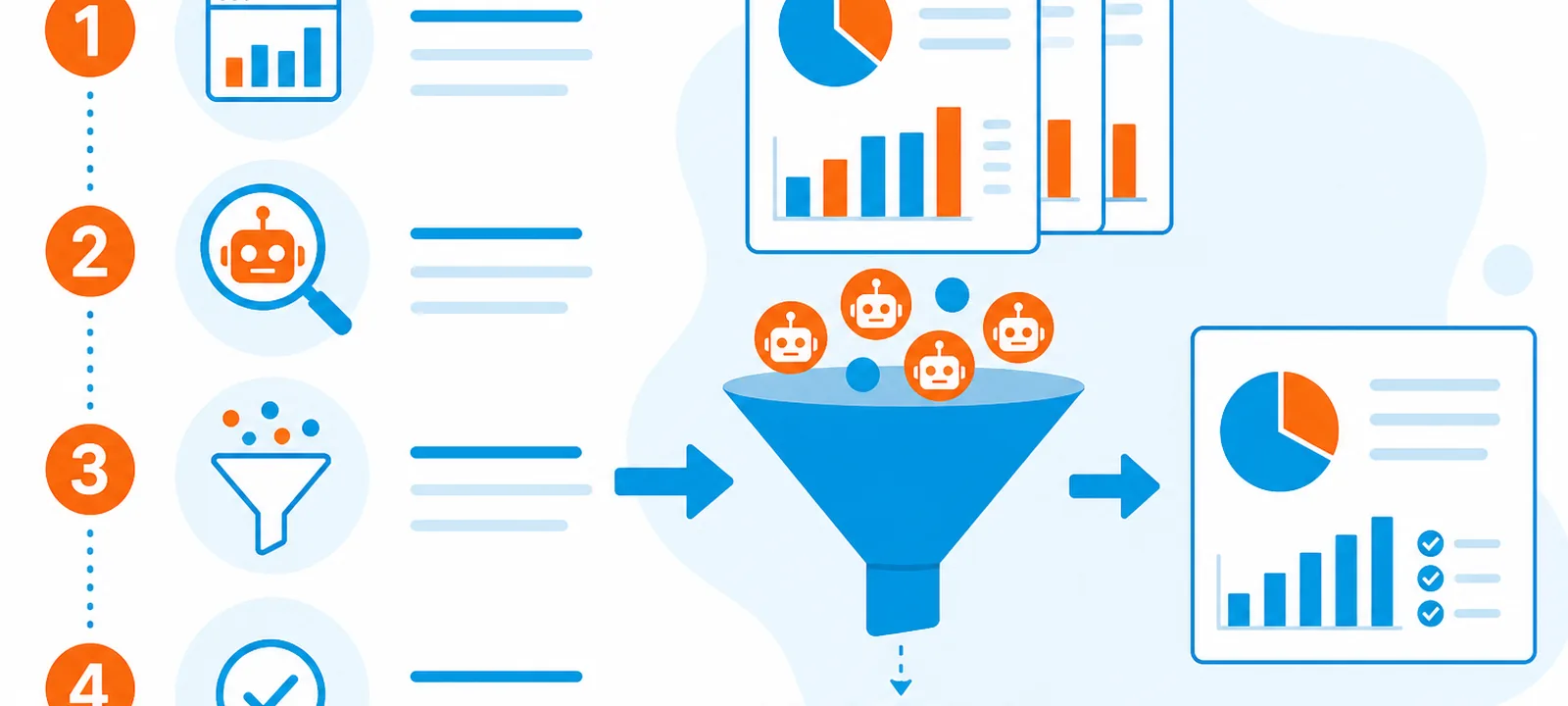
GA4 offers no bot filter switch to flip on or off. Known bots and spiders are excluded automatically, using Google research and the IAB International Spiders and Bots List, and GA4 does not show how much it removed (Known bot-traffic exclusion). The rest still shows up in Explorations, Acquisition reports and audiences unless you segment it out.
In-house PPC teams have one distinction to settle before any filter setting. Cleaning GA4 is a different job from Google Ads invalid-click filtering. And each of the three systems judges something different.
- For billing and for Ads metrics, Google Ads decides what was invalid (Invalid clicks definition, About invalid traffic).
- Inside your property, GA4 decides what you report on and what you build audiences from.
- Which leads sales trusts is decided in your CRM.
The same session can be billed as a Google Ads click, still show up in GA4, and still be worthless in CRM. Google's Help notes that its filters cannot block traffic from your site, because they run after an ad serves. It also notes that Google Ads reports might show different data than your website analytics. Ads removes filtered invalid clicks from its reports. But your analytics might still record the visit.
GA4 bot filter vs Google Ads invalid clicks
A different question sits behind each layer, and no layer does the work of the others.
| System | Built for | What you see | What it does not do |
|---|---|---|---|
| Google Ads invalid clicks and credits | Billing and Ads reporting integrity | Invalid clicks column on the Campaigns page; Invalid activity credits in Billing (not directly related to the column) | Guarantee clean Instant Forms or CRM leads |
| GA4 automatic bot removal | Keep known crawlers out of analytics | No count of removed bots (you cannot see how much was excluded) | Stop paid bots from clicking ads or spending budget |
| Your GA4 data filters and segments | Data filters: hygiene from activation forward. Segments: an analysis view | Cleaner Explorations, including past dates inside your retention window | Delete historical polluted data or issue Ads credits |
| Click Quality Form | Manual Google investigation (last 60 days) | Findings by email; possible extra credits | Per-click valid or invalid disclosure |
Answer leadership's "are we full of bots?" question by naming the layer you measured.
Mid-funnel junk that survives both filters
In-house teams still see these patterns after GA4's known-bot removal has already run, even when the Invalid clicks column looks calm:
- Paid sessions where engagement sits near zero: no scroll, no second page, no meaningful events.
- Form thank-you hits or Instant Form completions that CRM marks as fake.
- Spikes in new users appear on remarketing-heavy campaigns, which is unexpected when the audience should be returning visitors.
- Channel or campaign rows where Ads clicks and GA4 sessions diverge sharply once date ranges and consent have been reconciled.
None of these on its own proves Google owes you a credit. Ugly charts also come from shared NATed IPs, analytics duration artifacts and genuine low intent. That combination is enough to start an evidence pack rather than another creative test.
Cleaning the GA4 reports leaves intact what Google Ads already learned. Smart Bidding has been optimizing toward those junk form fills or thank-you hits when they count in a Primary conversion action (a Google Ads tag or an imported GA4 key event) in a goal your campaigns bid on. Secondary actions stay for observation only. On the Ads side, fix the conversion actions too. Bidding goes back into a learning period when conversion goals change (how invalid clicks break Smart Bidding).
How to identify suspicious traffic in GA4
Prove the pattern before you exclude anything.
- Go to Reports, then Acquisition, then Traffic acquisition (and User acquisition).
- With the pencil icon, customize the report. Add engagement rate, average engagement time, engaged sessions and views per session. On the user report, add new users as well.
- Sort so that sources or campaigns with high volume and near-zero engagement rise to the top.
- For that same slice, cross-check country, device and session campaign.
- In Explore, build a Free form exploration. Give it an exclude segment, for example Session engaged = 0, or a hostname that is not yours.
Read those metrics together. The tell is volume without engagement. One odd country is a hypothesis, not a verdict.
Filter bot traffic in GA4 step by step
GA4 no longer has the view filters Universal Analytics used. The levers below replace them, running from lightest to heaviest.
One rule shapes every lever. Data filters, such as internal traffic, apply only from the moment you activate them, and they do not change historical data. Segments are different. In Explorations they also work on past dates. But they only do so inside your event data retention window (2 months by default, up to 14 months on a standard property). No step removes bot hits from your historical standard reports. Put an annotation on the messy period.
1. Segments in Explorations
Build segments that exclude sessions with zero engagement time, spam hostnames, or known bad source/medium values. Before you rely on a segment, compare the segmented view with the unsegmented view over the same date range.
2. Internal traffic rules
From Admin, open Data streams and your web stream, then Configure tag settings, Show more, and Define internal traffic. Add the egress IPs for your office and your VPN. Put the data filter in Testing first, and move it to Active after that.
3. Unwanted referrals
Add domains that should not be credited as a traffic source, such as a payment processor, on the web stream (Configure tag settings, then List unwanted referrals). The allowance is up to 50 per stream. This counts as an attribution fix. It is not a bot filter. GA4 still records visits from those domains. They stop appearing as referrals.
4. GTM flags for suspicious clients
Send simple flags into GA4 events (for example suspect_client=yes for an odd user agent or a filled honeypot field, not the raw user agent string). Once they are registered as custom dimensions, segment on them. After you register the dimension, the data shows up in 24 to 48 hours. Keep the rules specific so real customers do not get dropped.
When a flag has proved itself in segments, dropping those hits is an option, instead of only hiding them. On the flagged events, set the traffic_type event parameter to your own value, such as suspected_bot, then create an internal traffic data filter that excludes that value. In Google's documentation, traffic_type is a parameter you can add to events yourself (Filter out internal traffic). IP rules are not the sole route. Here too, start with Testing, because an active filter discards data for good.
5. Server or CDN blocks for repeat abusers
Edge rules stop the hit before the tag fires when the same scripted clients hammer the site. Future GA4 data comes out cleaner. But blocking does not credit past Google Ads clicks.
6. BigQuery (optional)
If the property exports to BigQuery, query sessions that show tiny event counts and tiny engagement time. Validate what comes back before you automate exclusions.
How to verify your GA4 data after filtering
Check a data filter before it can remove anything. With the internal traffic filter left in Testing, browse the site from the office IP. While a filter is in Testing, GA4 leaves the matching data in place. It labels that data with the Test data filter name dimension, and you can use the dimension in Explorations. A data filter can take 24 to 36 hours before it applies. Check again after it has had that time. Then build a free-form exploration that uses Test data filter name and Event name as rows, Event count as the value, and a filter on Test data filter name containing your filter's name (Filter out internal traffic). The filter name should sit only on the traffic you meant to exclude.
After that, check the impact. With a data filter, compare the totals once you include the traffic that carries the test filter name and once you leave that traffic out. With a segment, set the segmented and unsegmented views against each other over the same date range. The rule is too broad if sessions, key events or a whole channel drop by more than the pattern you investigated explains.
Only move the filter to Active when both checks hold. Incoming data is changed permanently by an active data filter. An excluded event never gets processed, and it will never be available in GA4 or BigQuery.
When to escalate to a Click Quality Form
A Google investigation is the next step after analytics cleanup when most of these are true:
- The window sits inside the last 60 days.
- It is possible to attach GCLIDs, campaign names, IPs, devices and, for leads, a spreadsheet of outcomes.
- Ads metrics, GA4 and CRM still disagree, and the gap looks like abuse rather than seasonality or a tracking break.
- The spike is not already explained by change history (budget, keywords, geo, creative).
About invalid traffic and the Smart Bidding guide linked above cover Google's preparation list and the Click Quality Form. What you should expect is findings by email, not a click-by-click valid or invalid map.
AI crawlers vs AI referrals
AI traffic reaches GA4 in two very different forms. And only one of them is a filtering question.
- Crawlers such as GPTBot (OpenAI) and ClaudeBot (Anthropic) do fetch your HTML. They generally do not run JavaScript, so your GA4 tag usually does not fire (Vercel crawler analysis). Server logs or CDN dashboards are where you see them, not as GA4 sessions. In robots.txt, you allow or block them by user-agent token (OpenAI crawlers, Anthropic crawlers).
- Referrals from chatbot domains, the human clicks that come from AI answers, can be real traffic. Segment those clicks. Do not exclude them blindly.
- If an agent-like browser does fire JavaScript, it gets the same engagement tests you use for any other source.
Where paid-click monitoring fits
Measurement is what GA4 work cleans. A bot can still click the ad tomorrow, or enter a remarketing list after a junk session, and this work will not stop that.
If the junk is coming from paid channels, evaluate click monitoring that can exclude repeat offenders in Google Ads and score each visit on multiple signals. Take ClickPatrol: it classifies paid visits and pushes either a ClickPatrol_Legitimate or a ClickPatrol_Suspicious event to the data layer. Once you have forwarded those events into GA4, you can segment Explorations on them, build a suspicious audience to exclude in Google Ads, or count conversions on legitimate visits only. It works beside GA4 as a complement. It will not take the place of Google's Invalid clicks column.
For how ClickPatrol handles bot traffic on Google Ads, Meta and other channels, see the feature page. When you compare tools, see best click fraud protection software.
Practical order for self-advertisers
Begin with the cheapest fix, and escalate only when the evidence holds:
- Pick one painful campaign and reconcile it across Ads, GA4 and CRM.
- Add engagement columns to the Acquisition reports, and build an exclude segment in an Exploration.
- Fix the internal traffic setup and the obvious referral spam.
- Harden forms so junk conversions no longer enter Smart Bidding.
- Escalate to a Click Quality Form only once you have a real evidence pack.
- If repeat sources keep returning after steps 1 to 5, consider paid-click monitoring.
Frequently Asked Questions
Does GA4 automatically filter bot traffic?
Will filtering GA4 reduce my Google Ads spend?
No. Google Ads auctions and billing stay the same under GA4 filters and segments. What changes is what you analyze, and data filters can change which GA4 key events and audiences reach Google Ads from now on. That can affect bidding. It does not change what Google charges you for clicks.
Can I remove bot traffic from historical GA4 data?
You cannot delete it. Data filters only work going forward. A segment in Explorations can exclude suspect traffic, but only for dates inside your event data retention window, which is 2 months by default and up to 14 months on a standard property. On older periods, annotate the date range, then compare from there forward.
Will filtering bot traffic remove real visitors?
It can, if a rule is too broad. Once the data filter is Active, an IP rule that also matches customers, such as a shared coworking IP, permanently drops their visits. A zero-engagement segment can hide quick real visits too, since Google notes that a zero-second visit can mean the user stayed on the landing page. Start with data filters in Testing. Activate one only when the excluded traffic clearly looks like junk.
How do I block bot traffic instead of only filtering it in GA4?
GA4 can only filter what it already recorded. Stopping the visits means blocking repeat abusers at the server or CDN, protecting forms with reCAPTCHA and server-side validation, and excluding bad sources at the ad platform for paid campaigns. What blocking cleans is future data. It does not earn a credit for Google Ads clicks you already paid for.
What tools help filter bot traffic beyond GA4?
The traffic GA4 never records shows up in server logs and CDN dashboards. At the edge, services such as Cloudflare Bot Management block malicious bots. For paid campaigns, ClickPatrol's bot detection scores every ad click in real time, then excludes repeat sources in Google Ads and classifies visits on other channels so you can exclude them as an audience.

Written & reviewed by
Abisola Tanzako
Content Manager, ClickPatrol (click fraud & invalid-traffic specialist)
Abisola covers bot traffic, ad fraud and PPC protection, drawing on ClickPatrol platform data from 1,793+ businesses.
Last updated: 28 October 2026